Docker
1). What is Docker?
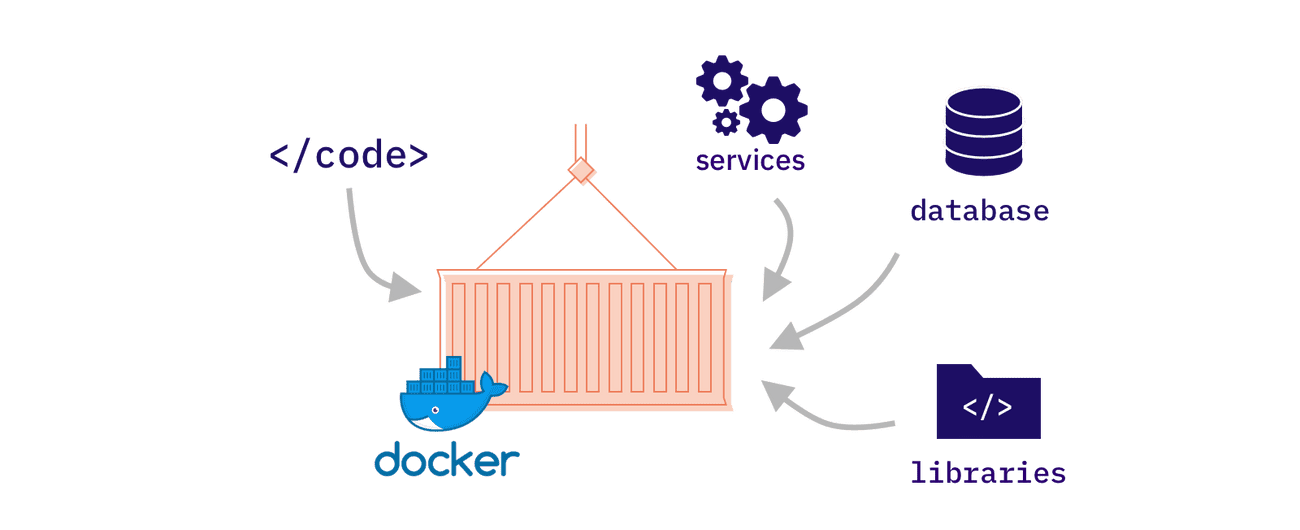
Imagine your favorite gaming console is like a Docker container. The game you want to play let’s say Valorant is your application code. But to run properly, the game also needs a controller, a power supply, and the right console software—these are your dependencies.
Now, without Docker, if you want to play at a friend’s house, you might run into problems—maybe they have a different console version, or they’re missing a controller, making the game unplayable.
But with Docker, it’s like carrying a portable gaming setup in one box. Inside, you have the console, game, controller, and everything needed to play. No matter where you go, whether it's your house, a friend’s place, or even a different country, you just unpack and start playing exact same experience, no hassle.
So , Docker is a tool that lets you package your software along with all its dependencies into a standardized unit called a container. These containers can then be easily shared and run on any system, making it simpler to develop, deploy, and manage applications.
2. Docker Image
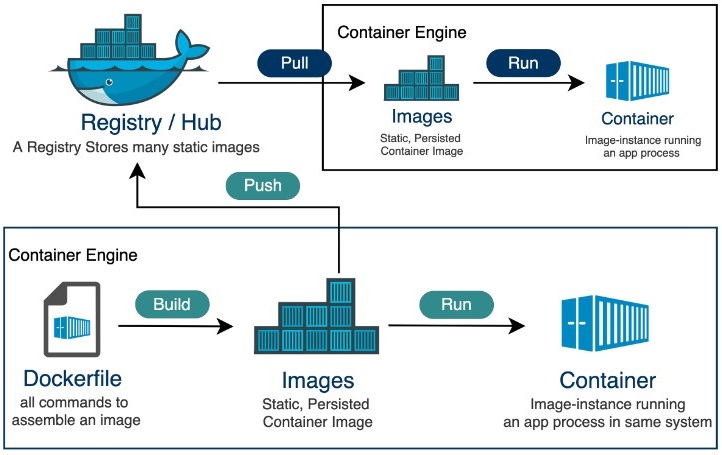
A Docker image is like a blueprint or recipe for a container. It contains everything needed to run an application, including the code, runtime, dependencies, and system libraries.
🔹 Example:
Think of a frozen pizza. The frozen pizza (Docker image) has all the ingredients pre-packaged, and whenever you need to eat, you just bake it in the oven. Similarly, when you run a Docker image, it creates a container that runs the application.
commands
1.Create an docker image using the Dockerfile
docker build -t image_name .
2.To see all the images
docker images
Versioning Images - Here in docker we can manage the version by adding a tag to our images.
Add a tag to the docker image
docker build -t image_name:tag .
Create a container with the tag(specified version)
Docker run –name container_name -p 3000:4000 image_name:tag
3. Docker Container
A Docker container is a running instance of a Docker image. It's like taking the frozen pizza (image), heating it up, and now it’s ready to eat (container). Containers are lightweight, isolated, and can run anywhere, making them perfect for deployment.
🔹 Example:
If you bake multiple frozen pizzas at the same time, you have multiple instances of the same pizza. Similarly, you can run multiple containers from the same image.
1.To create a container from that image
docker run –name container_name image_name
docker run –name container_name -d image_name (to run in detached mode)
2.To see all the running services(containers)
docker ps
3.To see all the containers (running ones or not)
docker ps -a

4.What is a Docker Volume?
A Docker volume is a way to persist data outside a container’s lifecycle. By default, when a container is removed, all its data is lost. Volumes solve this issue by storing data separately, so it persists even if the container is deleted or restarted.
Data Persistence – Data remains even if the container is removed.
Sharing Data Between Containers – Multiple containers can access the same volume.
Better Performance – Faster than storing data inside containers.
1.Create a docker volume
docker volume create my_volume
2.Run a docker container with a volume
docker run -d --name my_container -v my_volume:/app/data my_image
docker run --name container_name --rm -v /app/node_modules -v ${PWD}:/app image_name
3.List all docker volumes
docker volume ls
4.Inspect docker volumes
docker volume inspect my_volume
5.Remove
docker volume rm my_volume
5.Dockerignore
A .dockerignore file is used to specify which files and directories should be ignored when building a Docker image. It works similarly to .gitignore in Git. This helps in:
Reducing Image Size – Excluding unnecessary files keeps the image lightweight.
Improving Build Performance – Avoids copying large or unnecessary files into the image.
Enhancing Security – Prevents sensitive files (like .env, API keys) from being added to the image
Example - Dockerize a Node application
#Get the Base Image
FROM node:20-alpine
#Set the working directory
WORKDIR /app
#copy the package.json file
COPY package*.json ./
#Install the dependencies
RUN npm install
#Copy the source code
COPY . .
#Expose the port
EXPOSE 5000
#Start the application
CMD [ "npm" ,"start" ]
6.Docker Compose file
A Docker Compose file (docker-compose.yml) is a YAML configuration file used to define and manage multi-container Docker applications. It allows you to specify services, networks, and volumes in a structured way, making it easier to deploy and manage containers.
Example - Dockerize a MERN application
#Docker file for the client
FROM node:20.14.0
WORKDIR /app
COPY package.json .
COPY . .
RUN npm install
EXPOSE 3000
CMD ["npm","run" ,"start"]
#Docker file for the server
FROM node:20.14.0
RUN npm install -g nodemon
WORKDIR /app
COPY . .
RUN npm install
EXPOSE 5000
CMD ["npm","run" ,"start"]
#Docker compose.yml file

7. Docker Hub
Docker Hub is a cloud-based repository where developers can find and share Docker images. It’s like an app store for Docker images. You can pull official images (like Node.js, MySQL, or Nginx) or push your custom-built images for others to use.
Here’s a summary of what we talk